


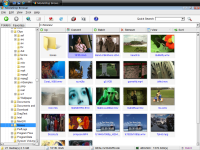
Browse, Play, Convert, Edit movies and photos on your computer. Make Thumb of any frame in movies. Supporting all popular formats. details...
- MovieShop Framer
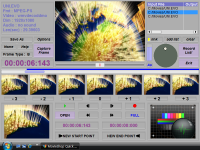
A Quick Editor for all popular movie formats. Especially, it processes movies FRAME ACCURATELY. You can observe each scene thoroughly, merge scenes from multiple movies, and output to various formats.
How To EDIT H.264/AVCHD/MPEG2 without re-encoding:
Cut videos captured by DV Cam and HD PVR without re-encoding
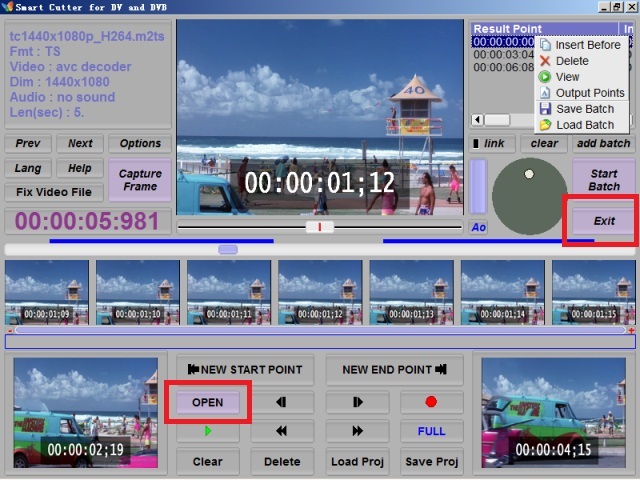
1. start Smart Cutter
click the 'OPEN' button, select a .mp4 .mov .ts .tp .trp .mts .m2ts .mpg .vob file
any time you can shut down the program by the 'Exit' button
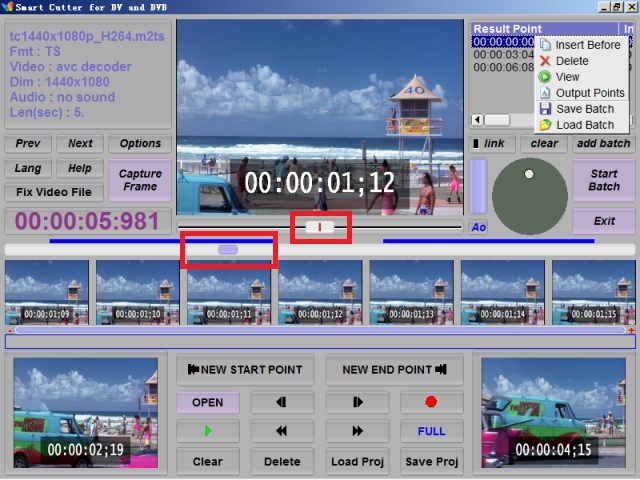
2. use the long range whole slider to seek different video scenes
3. use the short range fine slider to locate frame accuratly
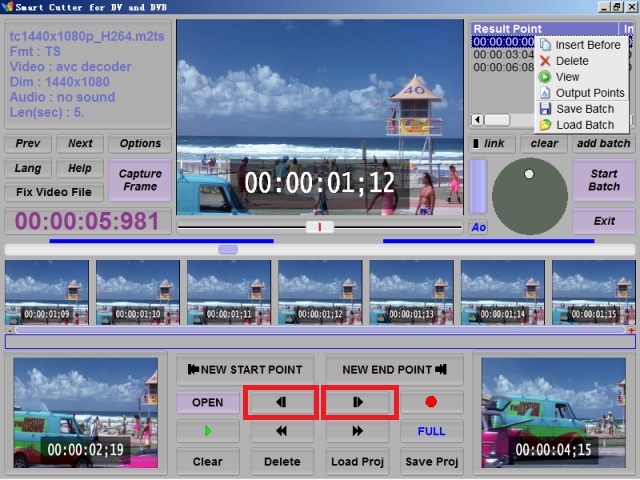
4. Use '<|'or '|>'to single step forward or back
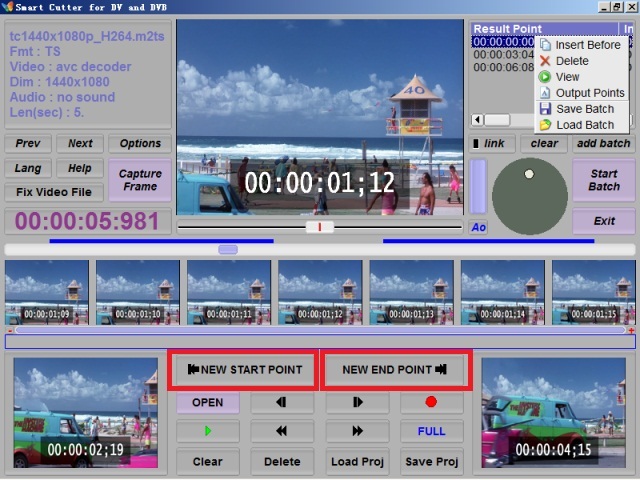
5. set start point by 'New Start Point'
6. set end point by 'New End Point'
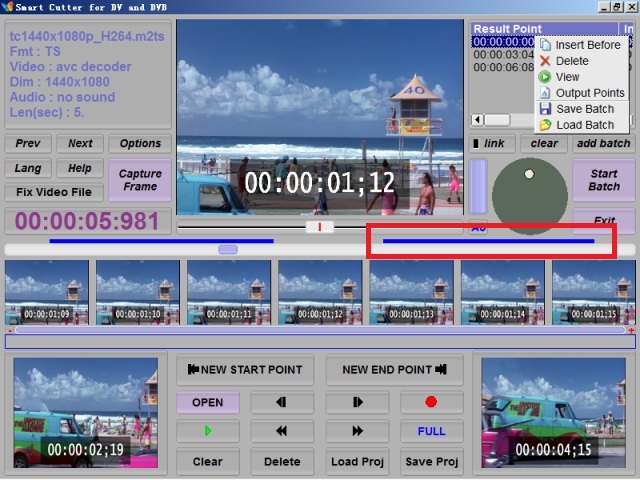
7.A blue segment will be shown between the long slider and the short slider, you can review the segment by clicking on it
Press 'Clear' to reset everything, 'Delete' to remove current segment, define multiple segments as previous steps if needed
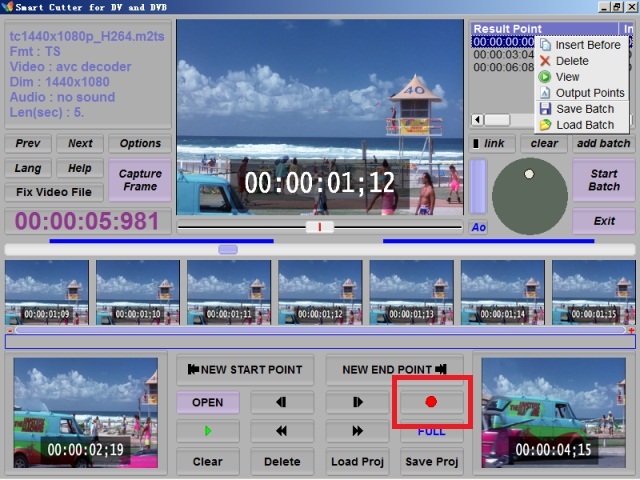
8. Press Red Circle Button, it will be transcoding
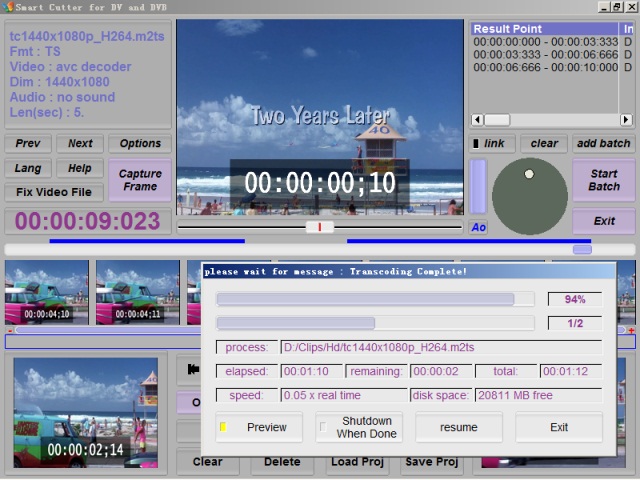
9. in the monitor dialog, you can see the progress of the operation, stop, pause or resume the process
10. when the process completed, you will see a message box showing 'Transcoding Complete' as an indicator
How to load and save project:
Press 'Load Proj' to open segments setting from project file
Press 'Save Proj' to save segments setting into project file
Batch work can help you process multiple projects in one time run:
Each batch list item is a segments setting project actually.
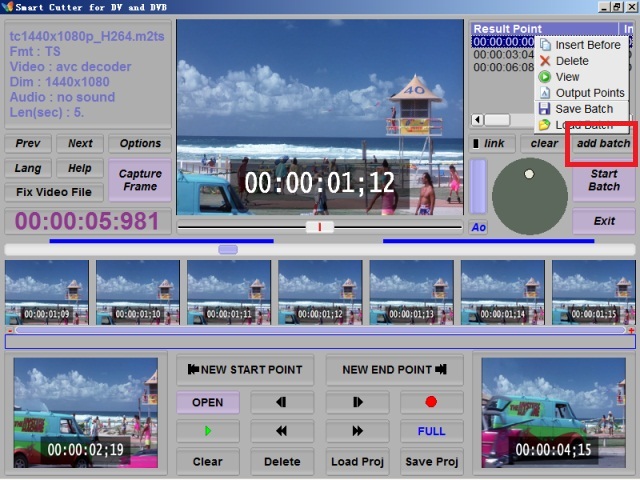
1. Click the add batch button to add currently defined segments into batch list.
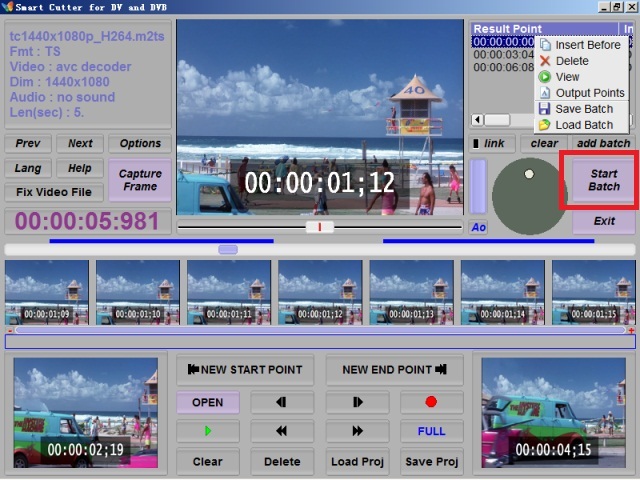
2. Press 'Start Batch' to start the transcoding. If the button 'link' lightened up, you will be asked for a output file name, the result will be one single file with all batch items(projects) merged together; otherwise, each batch item(project) will be transcoded into a new file.
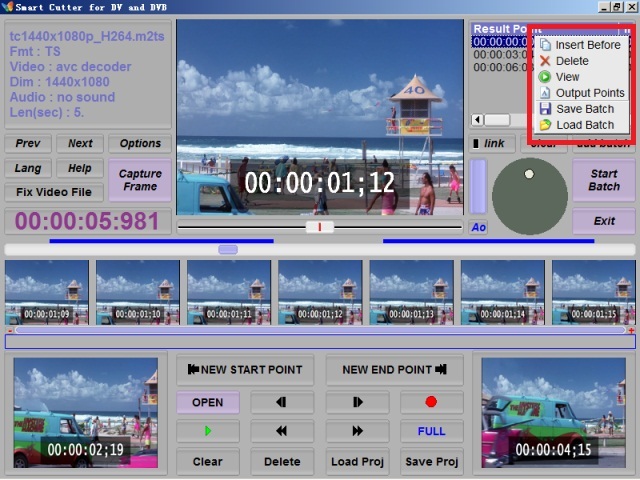
3. You can load batch into and save batch from batch list, 'right click' on the batch list, select the menu item 'load batch' and 'save batch'.
You can also output all the edit points into a text file by 'output points'.

